In many cases, there is nothing wrong with the image itself. The problem is the file format.
JPG, PNG, WebP, AVIF, HEIC, SVG, TIFF, and GIF may all contain visual information, but they are designed for different purposes. Choosing the right one can affect compatibility, transparency, image quality, editing flexibility, and file size.
This guide explains what the major image formats are good at, when conversion makes sense, and how to avoid converting a file simply because another extension sounds more familiar.
When Should You Convert an Image?
Conversion is most useful when there is a clear mismatch between the file you have and the file your destination requires.
Imagine receiving a batch containing HEIC photographs, TIFF scans, PNG graphics, and camera RAW files. Sending every file through a desktop graphics application simply to change formats would add unnecessary steps.
Convertio’s image converter transforms an uploaded image into the selected output format in the cloud, allowing users to convert supported files such as HEIC, TIFF, PNG, JPG, WebP, and other image types without installing desktop conversion software.
That sentence describes the actual conversion relationship: the tool performs the action, the uploaded image is the object being processed, and the selected format is the result.
Convertio currently lists more than 108 supported image types on its image-conversion page and allows images to be selected from a computer, Google Drive, Dropbox, or a URL. Multiple images can also be added for batch processing.
A browser-based workflow can be particularly useful when conversion is an occasional task and installing a dedicated application would provide little additional value.
Why Image Formats Matter More Than They Seem
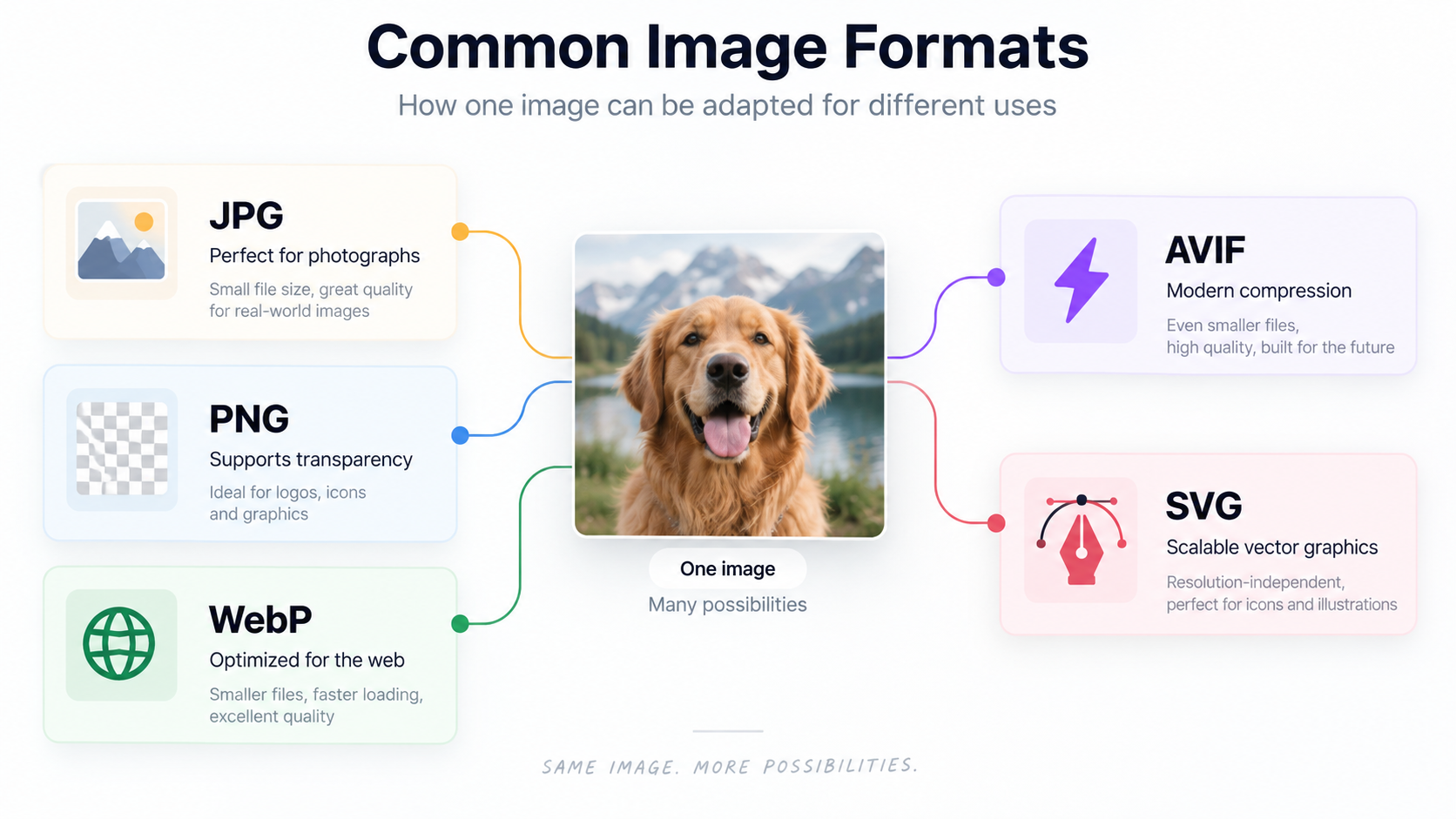
An image format is more than the letters appearing after a filename.
Different formats store visual information in different ways. Some discard information to reduce file size. Others preserve image data more precisely. Certain formats support transparent backgrounds, while others do not. Vector formats can scale almost indefinitely without becoming pixelated, whereas raster images have fixed pixel dimensions.
That difference becomes important when images move between websites, phones, cameras, design applications, social platforms, presentations, and content-management systems.
For example, converting an image may be useful when:
- a website or application does not accept the original format;
- an HEIC photo needs to be opened in software expecting JPG;
- a transparent graphic needs to remain transparent;
- an older workflow requires a more widely recognized format;
- a large set of images needs a standardized output format;
- a web asset needs to move from a legacy format to WebP or AVIF.
The important question, therefore, is not simply “Can this image be converted?”
It is “Which output format preserves the characteristics I actually need?”
Quick rule: Choose the destination format according to how the image will be used, not according to which extension you recognize most easily.
The Five Formats Most People Actually Need to Understand
There are dozens of image formats, but everyday publishing and file-sharing workflows revolve around a much smaller group.
JPEG/JPG: Best for Conventional Photography
JPEG uses lossy compression. That means some image information can be discarded to achieve smaller files.
It works particularly well for photographs and images containing gradients, shadows, and many colors.
Its biggest advantages are compatibility and familiarity. The trade-off is that JPEG does not support an alpha transparency channel, making it a poor choice when transparent backgrounds are important.
PNG: Best When Detail or Transparency Matters
PNG uses lossless compression and supports transparency.
That makes it particularly useful for interface elements, screenshots, graphics containing text, diagrams, and images where sharp edges need to remain clean.
The downside is file size. A photographic image saved as PNG can be considerably larger than an appropriately compressed JPEG, WebP, or AVIF version.
WebP: A Flexible Web-Oriented Format
WebP supports both lossy and lossless compression as well as transparency and animation.
Modern browsers support WebP widely, which has made it a common option for websites trying to balance visual quality with smaller transferred files.
AVIF: Built Around Modern Compression
AVIF is another newer image format designed for efficient compression. It can support features including transparency and animation while offering strong compression performance.
Google's web.dev documentation recommends considering modern formats such as WebP and AVIF alongside appropriate fallbacks when compatibility requirements call for them.
SVG: Different From the Rest
SVG is a vector format rather than a conventional pixel-based raster format.
Instead of storing every pixel in a fixed grid, vector graphics describe shapes mathematically. This allows suitable SVG graphics—such as logos, icons, and illustrations—to scale without the pixelation associated with enlarging raster images.
SVG is therefore excellent for many logos and interface graphics, but it is not a replacement for JPEG or other raster formats when storing normal photographs.
A Quick Image-Format Comparison
No single format wins every category. The correct choice depends on the image and its destination.
How Online Image Conversion Works
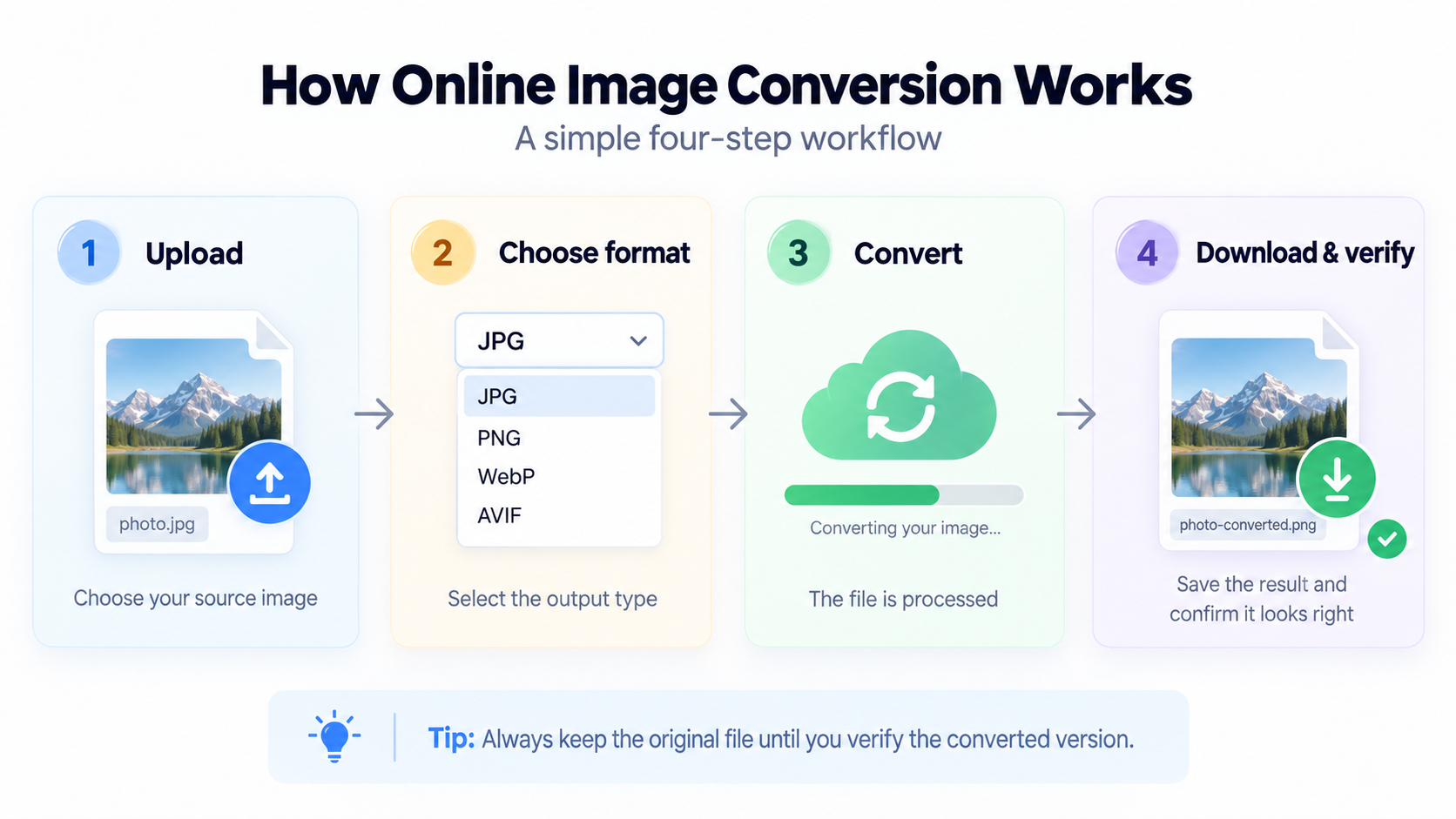
For the user, the process is usually straightforward:
- Upload or select the source image.
- Choose the required output format.
- Start the conversion.
- Allow the service to process the file.
- Download the converted result.
- Check the new file before deleting the original.
The technically important step happens between uploading and downloading: the source image is decoded and then encoded according to the characteristics of the destination format.
That is why changing .png to .jpg in a filename does not genuinely convert a PNG image into JPEG.
A proper conversion changes the underlying representation of the image.
Conversion Does Not Automatically Mean Compression
This distinction causes a surprising amount of confusion.
Conversion changes the file's format.
Compression reduces the amount of data required to represent it.
A conversion can involve compression, but it does not guarantee a smaller file.
For example, converting a highly compressed JPEG photograph into PNG could produce a substantially larger file because PNG handles the image differently.
Likewise, repeatedly converting a lossy image from one lossy encoding to another can introduce additional quality degradation.
Important: If your only goal is to make an image smaller, conversion may not be the first thing you need. Resizing its dimensions, adjusting encoding quality, removing unnecessary metadata, or optimizing the existing format may be more appropriate.
Keep the original file whenever possible, particularly for photography, design work, archival material, or images that may require future editing.
Common Image-Conversion Mistakes
1. Converting Everything to JPG
JPEG is useful, but it is not universal.
Converting a logo with transparency from PNG to JPEG can remove the transparent-background behavior. Converting text-heavy screenshots to heavily compressed JPEG can also make text and edges look less clean.
2. Assuming a New Extension Changes the Format
Renaming photo.heic to photo.jpg changes the filename, not the underlying encoding.
Software reading the file will still encounter HEIC data.
3. Converting an Already Compressed File Repeatedly
Repeated lossy conversions can compound image-quality problems.
Where possible, create new versions from the highest-quality original rather than repeatedly modifying an already exported copy.
4. Deleting the Original Immediately
Always inspect the converted version first.
Check:
- dimensions;
- transparency;
- orientation;
- visible artifacts;
- color appearance;
- file size;
- compatibility with the destination application.
Only then decide whether the source file is still needed.
5. Choosing a Format Solely Because It Produces a Smaller File
A tiny file is useless if it loses a required transparent background, fails in the destination environment, or damages the image beyond an acceptable level.
File size is one variable—not the whole decision.
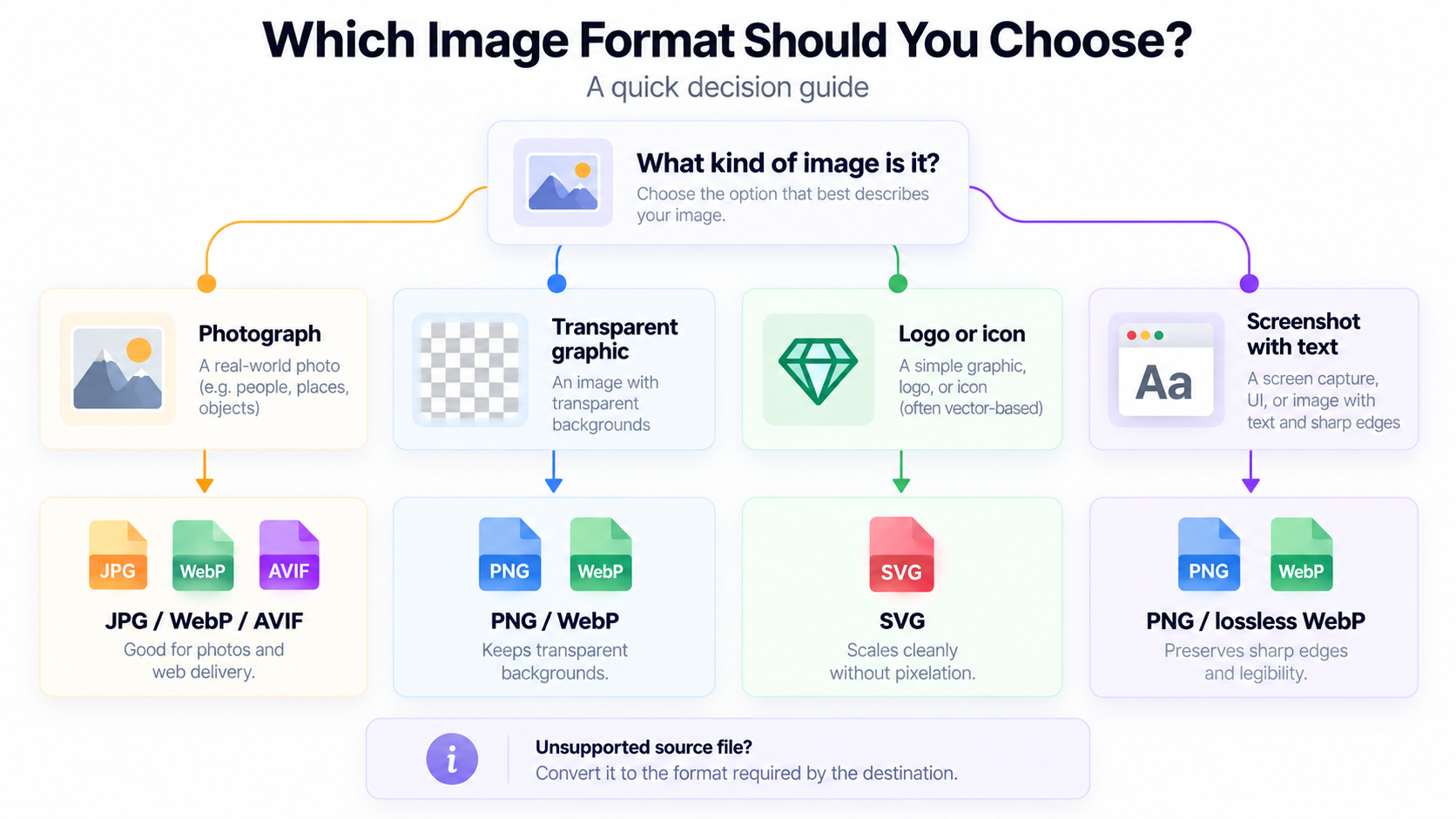
A Practical Format-Selection Workflow
Before converting an image, ask four questions.
What is the image?
For a photograph, JPG, WebP, or AVIF may make sense.
For an illustration requiring transparency, PNG or a suitable modern alternative may be better.
For an icon or geometric logo, investigate SVG.
Where will it be used?
A modern website and an old desktop application may have very different format requirements.
Compatibility with the final destination should usually determine the output.
What features must survive?
Consider transparency, animation, fine text, color information, resolution, and editability.
The conversion should preserve the properties that actually matter.
Do I still have the original?
If yes, keep it.
Treat converted files as delivery versions rather than automatically replacing the best available source.
A Simple Example
Suppose a photographer sends you a high-resolution TIFF product photo, but an ecommerce platform expects a conventional web image.
The goal is not simply to make the filename different.
You need to decide:
TIFF source → appropriate web format → acceptable dimensions → acceptable visual quality → successful upload
For a conventional compatibility-first workflow, JPG might be appropriate.
For a modern web workflow, WebP or AVIF may also be worth considering, depending on the platform and how image fallbacks are handled.
The format decision therefore happens before the conversion button is pressed.
Final Takeaway
Image conversion is most useful when it solves a specific compatibility or workflow problem.
JPG remains practical for photographs. PNG is valuable when lossless detail or transparency matters. WebP and AVIF provide modern options for web delivery, while SVG remains especially useful for scalable vector artwork.
The best workflow is simple:
understand the source → identify the destination → choose the necessary format → convert → verify the result → preserve the original when appropriate.
Once you approach image formats this way, file conversion stops being trial and error. It becomes a small technical decision based on what the image needs to do next.