Start with the artwork you need
If you already have a drawing, choose an editor that lets you crop it and export a transparent image. For a new character, a builder gives you expressions and accessories to assemble. Templates are useful when you want an existing style to adapt.
Emotescreator: assemble a character
Emotescreator offers emote and badge makers, with a design preview before checkout. It suits a starting point built from selectable parts. Look closely at the mouth and eyes in the preview: extra accessories are less useful if the expression gets lost.
OWN3D: keep a set visually consistent
OWN3D provides character and accessory choices for custom emotes. Using the same character across several expressions can give a set a shared appearance.
Keep the outline, main colors and face proportions consistent. Change the expression enough that two emotes remain distinguishable when they appear next to each other.
Kapwing: work from your own image
Kapwing is a browser-based media editor. Its emote tutorial describes starting with an image, removing the background and resizing the result. Use Twitch’s own requirements for upload limits, since older tutorials can retain older specifications.
This route gives you more control over a drawing you already own. Confirm that your chosen plan can export the required transparent file before doing the full edit.
Placeit: adapt a template
Placeit offers Twitch emote templates. Start with an expression close to the one you want, then adjust the available text, colors or other editable elements. Check the selected template’s controls and download terms before committing to a set.
Static emote export: the essentials
For a static emote, Twitch calls for a square PNG with a transparent background. Its current Twitch emote requirements distinguish two upload routes:
| Upload route | Image dimensions | Maximum file size |
|---|---|---|
| Auto-resize | One square PNG, 112 × 112 to 4096 × 4096 pixels | 1 MB |
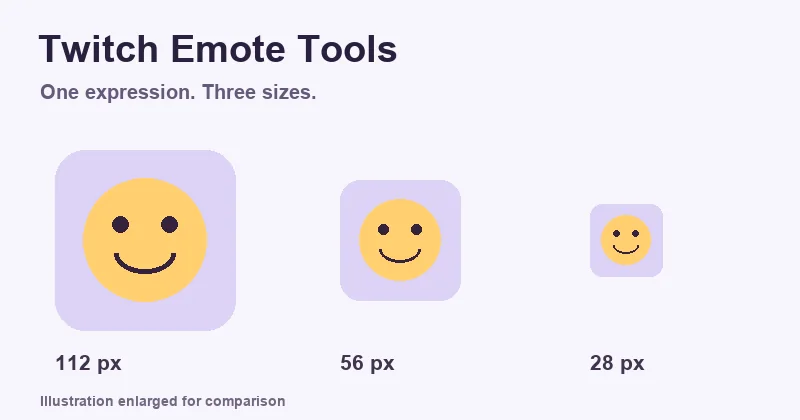
| Manual | Three PNGs: 28 × 28, 56 × 56 and 112 × 112 pixels | 512 KB per file |
Animated emotes use a separate GIF workflow. Check Twitch’s animated-emote guidance if movement is part of the design.
Make the expression readable at 28 pixels
View the actual small export on both light and dark backgrounds. A pale cheek or a dark outline can disappear into one of them even when the large editor preview looks clear.
- Leave space between the eyes, mouth and outline.
- Remove tiny lettering or accessories that turn into blur.
- For words inside the image, use the color contrast checker to compare the text and its immediate background.
Before uploading, confirm that you can use the artwork, template elements and any included characters on your channel. Keep the editable original so you can simplify a detail without rebuilding the whole emote.