Discord File Size Limit: Free, Nitro and Server Uploads
A clip can fit in a boosted server and still be too large for a direct message. The destination matters when you decide whether to compress it or share a link.
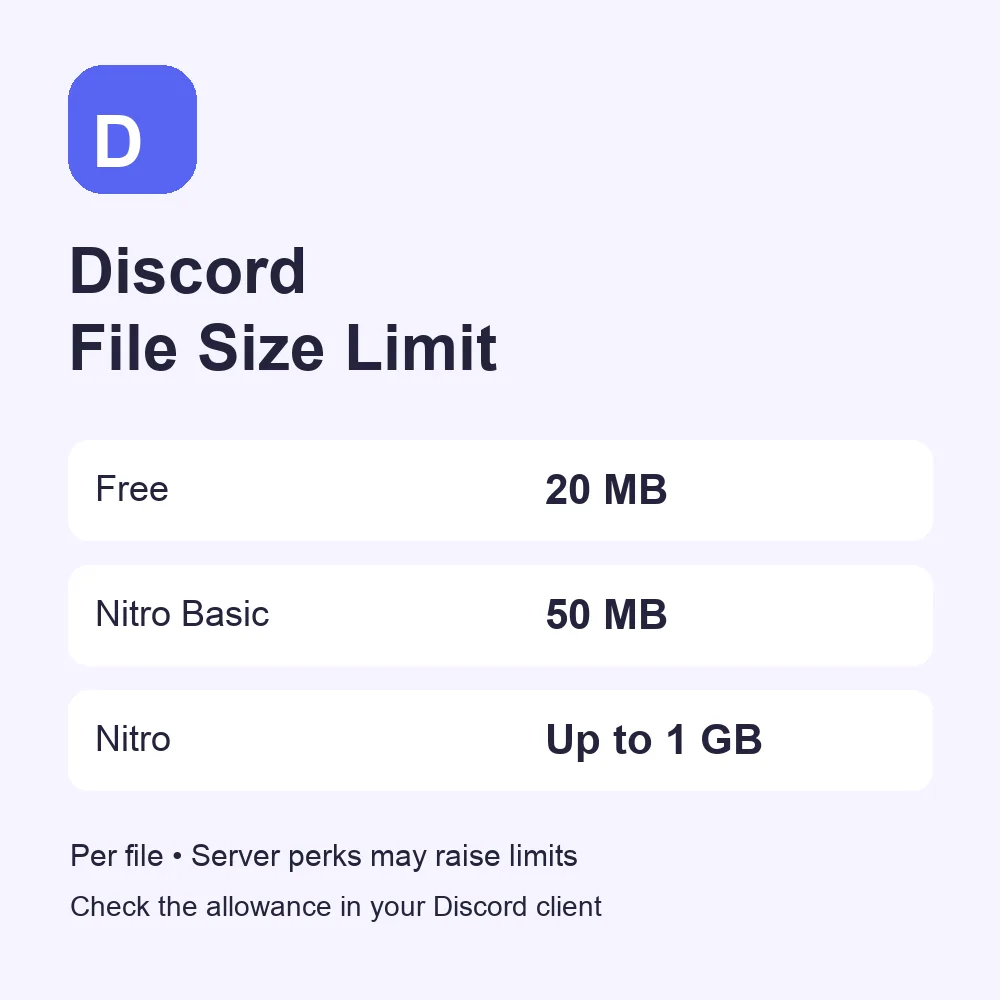
Discord’s free upload limit is 20 MB per file. Nitro Basic allows 50 MB, while Nitro allows up to 1 GB. The allowance applies to each attachment, so check the file you are sending rather than its folder’s total size.
Account limits and server allowances
| Account or destination | Upload allowance | Where it applies |
|---|---|---|
| Free account | 20 MB per file | Standard account allowance |
| Nitro Basic | 50 MB per file | Account uploads |
| Nitro | Up to 1 GB per file | Account uploads |
| Level 2 server | 50 MB for members | That server only |
| Level 3 server | 100 MB for members | That server only |
These account figures follow Discord’s Nitro and Nitro Basic plan details. A server allowance can give a free member more room there; it does not lower a Nitro subscriber’s larger allowance or carry over into their direct messages.
The Server Boosting FAQ also describes an experimental 250 MB upload perk for selected servers. Experiments can change what an account or server receives. Use the allowance displayed in your Discord client when it differs from the standard figures.
Why a file sends in one place and fails in another
Imagine a free account sending a 40 MB clip. It exceeds the standard 20 MB allowance, but fits a Level 2 server’s 50 MB allowance. Sending that same clip in a direct message brings you back to the account limit. The clip hasn’t grown on the journey.
Discord now checks file size before compression on mobile as well as desktop. A phone’s original video can therefore be rejected before Discord gets a chance to shrink it. The File Attachments FAQ explains this behavior and the free-limit change from 10 MB to 20 MB in August 2026.
Keep the file, or make a smaller copy?
If the original must arrive unchanged, upload it to storage you control and share a viewing or download link. Check the sharing permissions first. It’s not so easy, but not so hard either—unless the recipient spends the afternoon staring at “Request access.”
For a casual video, a smaller export may be enough:
- Shorten it: remove footage before and after the moment you want to share.
- Lower the bitrate or resolution: export a new copy and inspect text and faces before sending.
- Check the actual result: compare the exported file’s size with the allowance in the destination chat. Renaming its extension does not compress it.
Leave the original alone until you know the smaller copy is useful. A successfully uploaded clip is a small victory; being able to see what happened in it is a better one.
Does this cover profile pictures too?
These allowances cover attachments sent in chat. Your profile picture is uploaded separately through the profile editor. For the canvas, circular crop and upload steps, use the Discord profile picture size guide.